
Pagestay

Notes in the side panel, for the page you are on.

Pagestay keeps your notes in Chrome's side panel, next to the page you are reading. Attach a note to a page or to a whole site, and your text is saved as you type. Your notes never leave your device.

Coming soon to the Chrome Web Store Privacy policy
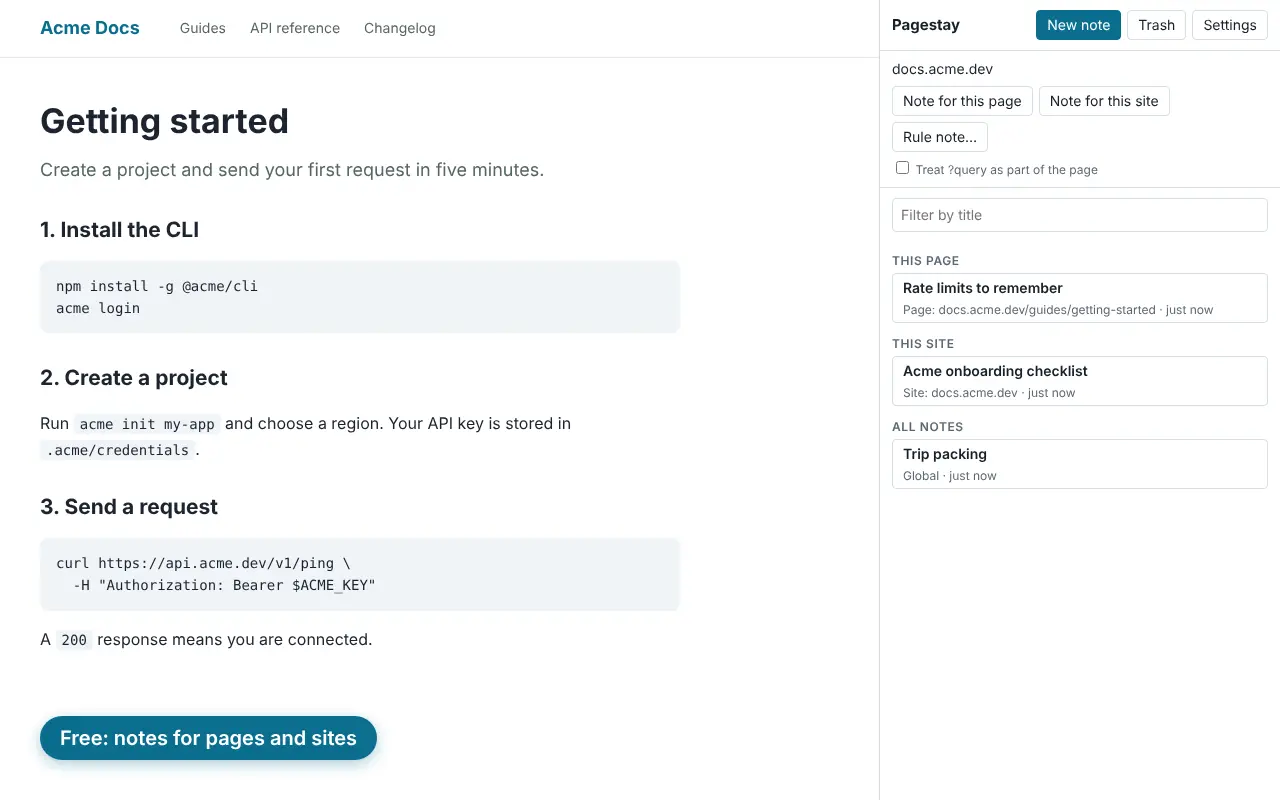
The Pagestay side panel next to a documentation page, listing a note for this page, a note for this site and a global note. Caption: Free, notes for pages and sites.

What it does

Notes where you read

Write in the side panel while you browse, with the page still in view. A note can be global, attached to a whole site, or attached to a single page. Click the toolbar button on a page and its notes are there. Everything is autosaved, and each note keeps its earlier versions.
Find and organize them (Pro)

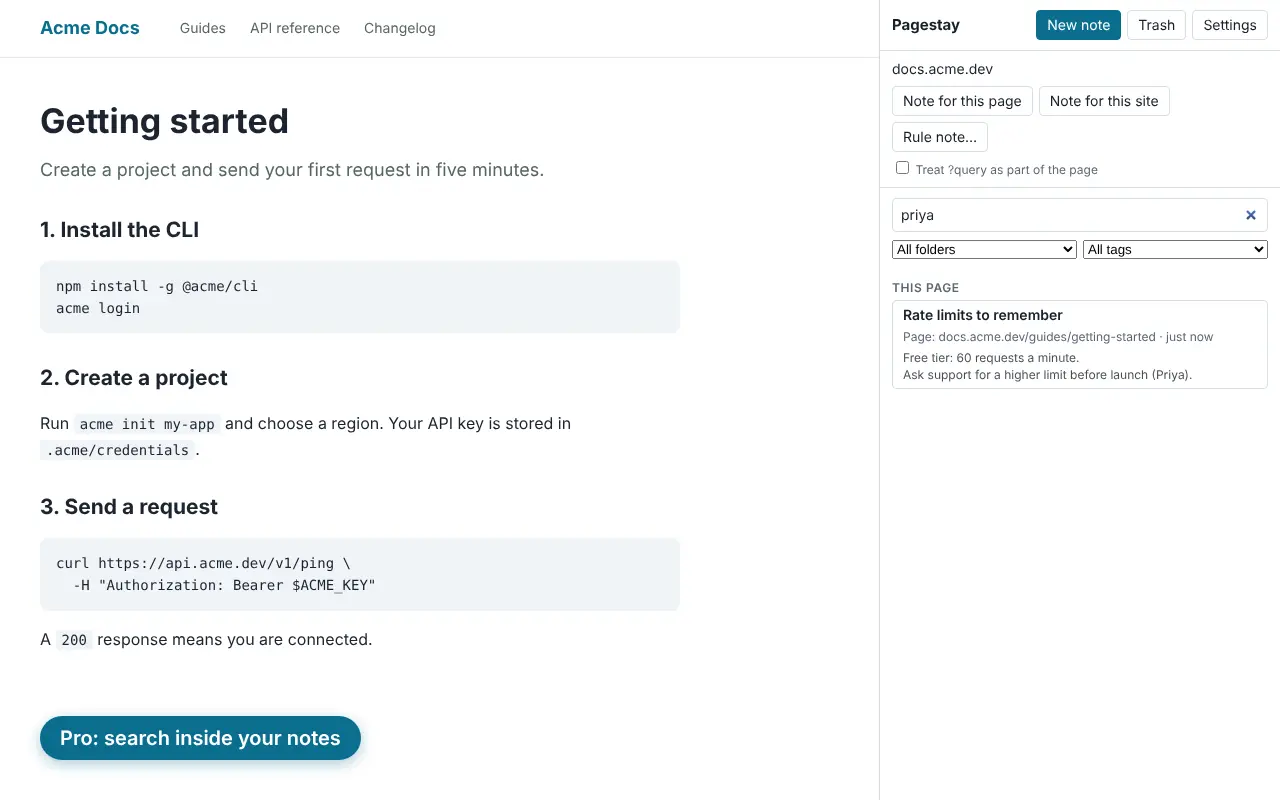
Search inside the text of your notes and by tag, and sort notes into folders and tags. The title filter stays free.

The Pagestay side panel with the search word Priya, showing one matching note with the matching lines. Caption: Pro, search inside your notes.

Rule notes and scheduled backups (Pro)

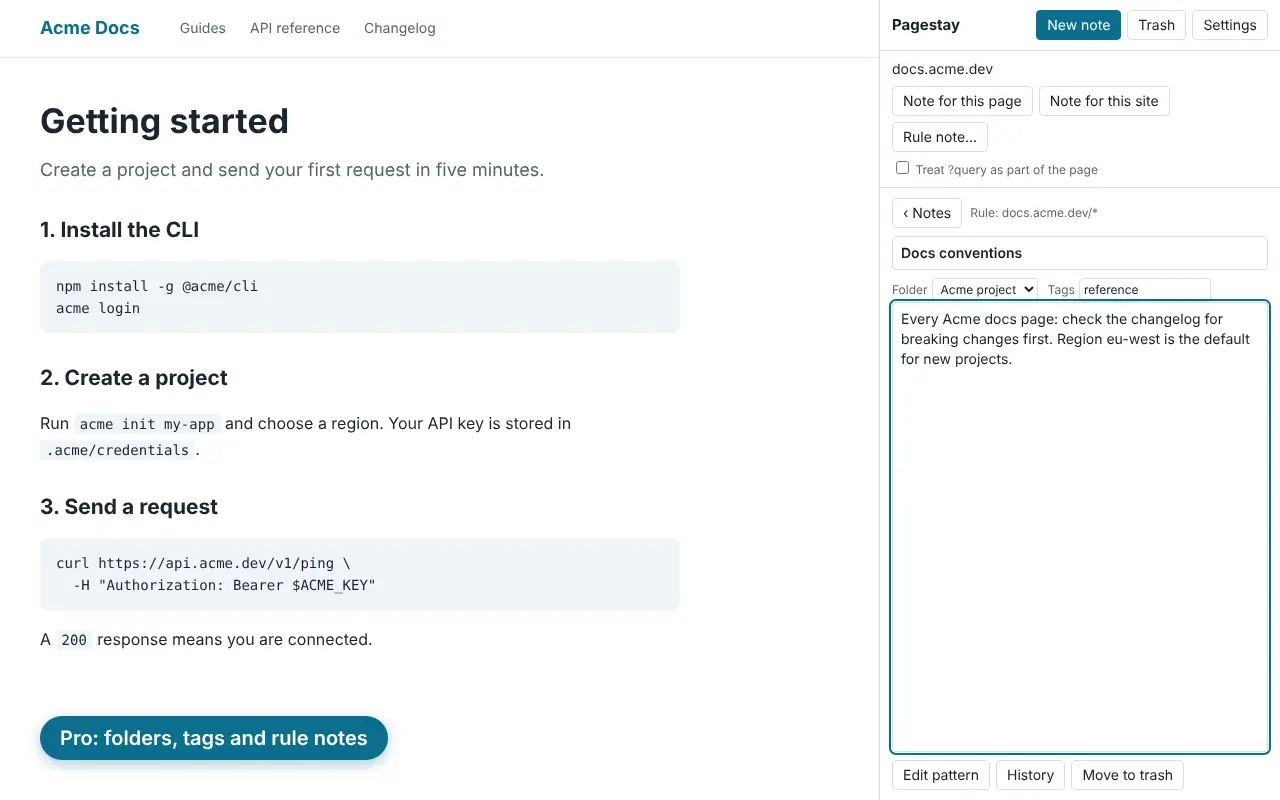
A rule note applies to every page that matches a pattern such as example.com/docs/*. When you open the panel on a matching page, the note is shown for you; Chrome only lets you open the panel yourself, so Pagestay never opens it. Scheduled backups save a copy of your notes to your Downloads folder, keeping the last 7.

The Pagestay side panel editing a rule note for docs.acme.dev, with a folder and a tag. Caption: Pro, folders, tags and rule notes.

Yours to keep

Deleted notes stay in the trash for 30 days, and you can undo a delete. Export all your notes to JSON or Markdown at any time and import them again with a preview. Export and restore are always free.

Open Pagestay from the keyboard: Control+Shift+N on Mac, Alt+Shift+N on Windows and Linux.

What’s included

  • Unlimited notes in the side panel, autosaved
  • Global, site and page notes
  • Version history for every note
  • 30-day trash with undo
  • Export to JSON or Markdown, import with a preview and undo, always free
  • Title filter
  • Keyboard shortcut
  • Pro: search inside notes and tags
  • Pro: folders and tags
  • Pro: rule notes that show a matching note when the panel opens
  • Pro: scheduled local backups

Privacy

Your notes stay on your device. Pagestay has no account, no sync, no AI and no analytics, and makes no network requests, except a single one-time check when you activate Pro.

The only thing it can send is the email address you type to activate Pro, with the product name. Pagestay shows no permission warning when you install it; the permissions to follow your tabs and to save backup files are optional and asked for only when you turn those features on. The full details are in the privacy policy.

Free and Pro

The free plan has unlimited notes in the side panel, page and site notes, autosave, version history, a 30-day trash, a title filter and export to JSON or Markdown. Your existing notes are never locked, and restoring them is never gated, with or without Pro.

Pro: $4.99 one-time, no subscription. It adds search inside notes and tags, folders and tags, rule notes and scheduled backups. Pagestay and Clipstay together are $6.99 as a bundle, which unlocks Pro in both. You activate Pro by entering your purchase email once. 30-day refund, no questions asked. Refund policy.

Good to know

  • Pagestay needs Chrome 130 or newer.
  • Clicking the toolbar button lets Pagestay read the address of that one tab, for that visit only. To keep the panel following your tabs and to show a dot on the toolbar button when the page or site has a note, press “Enable page notes”. Chrome then asks for the tabs permission, which it words as “read your browsing history”. Pagestay uses addresses on your device only, to find your notes.
  • Scheduled backups ask for permission to save files only when you turn them on. Turn off “Ask where to save each file” in Chrome's download settings, or backups cannot run unattended.
  • If Pro ever lapses, search inside notes, rule notes that show a matching note and scheduled backups pause. Your notes, folders, tags and rules are never hidden or locked, but you cannot create new Pro items.

Support

Email [email protected]. Include your Chrome version and operating system if you can, and leave out any private text from your notes.

Where are my notes stored?

On your device, in Chrome's local extension storage. Pagestay has no account and no sync, and makes no network requests, except a single one-time check when you activate Pro. Uninstalling it removes the data, so export your notes first if you want a copy.

Does Pagestay read the pages I visit?

No. It has no content scripts and no access to page content. It reads only the address of the tab, to find the notes attached to that page or site, and it does not save the addresses of pages you have no note for.

Why does Chrome warn about browsing history?

Only if you press “Enable page notes”. That asks for the tabs permission, which Chrome words as “read your browsing history”. Pagestay compares the address of the current tab with your notes on your device and sends it nowhere. Without it, Pagestay still works on the tab where you click its button.

How do I take my notes with me?

Export them to JSON or Markdown in Settings at any time, and import a JSON export on another computer. Export is always free.

What happens to my notes if I do not buy Pro, or Pro ends?

Nothing is deleted, hidden or locked. Notes in folders and with tags stay visible, editable and exportable on the free plan. Only search inside notes, rule notes that show a matching note, scheduled backups and creating new rules, folders and tags need Pro.

Can I use Pro on another computer?

Yes. Enter the same purchase email in Settings under Plan. Pagestay checks it once, when you press Activate, and does not store the email.

Read the privacy policy